
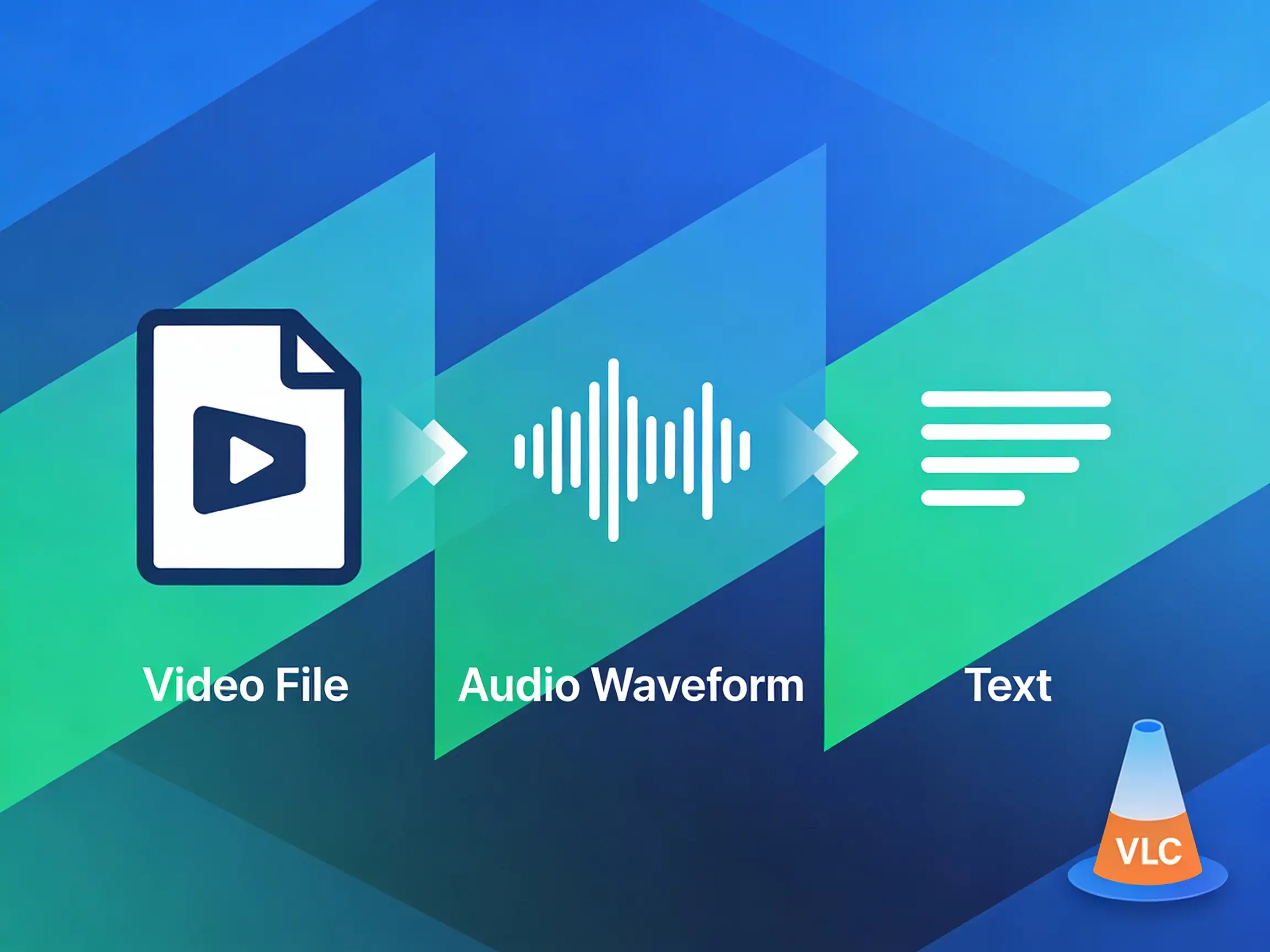
How to Extract Audio from Video Using VLC: The Ultimate Guide
Get your audio ready for transcription in minutes
Before you can transcribe your video content into text, you often need to extract the audio first. VLC Media Player is a fantastic free tool for this. Once you have your audio, 1bit AI can turn it into accurate text in seconds.
Why Extract Audio?
Faster UploadsAudio files are much smaller than videos.
Better CompatibilitySome specialized tools work best with WAV or MP3.
Step-by-Step: Extracting Audio with VLC (Windows)
- 1 Open VLC Media Player.
- 2 Go to Media → Convert / Save.
- 3 Click Add and select your video file.
- 4 Click Convert / Save.
- 5 In the Profile dropdown, select Audio - MP3.
- 6 Choose your destination file and click Start.
Step-by-Step: Extracting Audio with VLC (Mac)
- 1 Open VLC.
- 2 Go to File → Convert / Stream.
- 3 Drag your video media into the window.
- 4 Choose Audio - MP3 as the profile.
- 5 Click Save as File and choose your location.
Next Step: Convert Audio to Text
Now that you have your MP3 file, it's time to get your transcript.
- 1 Go to 1bit AI Transcribe.
- 2 Upload your newly extracted audio file.
- 3 Let our AI generate a perfect transcript for you in minutes.